
Prerequisites
This tutorial works for Linux systems.
For the next instructions to work, the following packages must be installed:
dockervim(or any other text-editor)
Install Portainer CE
First, let’s install Portainer!
docker run -d -p 9000:9000 --name portainer --restart=always -v /var/run/docker.sock:/var/run/docker.sock -v portainer_data:/data portainer/portainer-ce:latestIt will download the latest portainer-ce image and run it on port 9000.
Portainer CE is the Community Edition. It is the free and open source variant. Visit https://github.com/portainer/portainer for the source code. Alternatively, there is the Business Edition.
Update Portainer
Next up: Let’s make it easier to update Portainer… in the future.
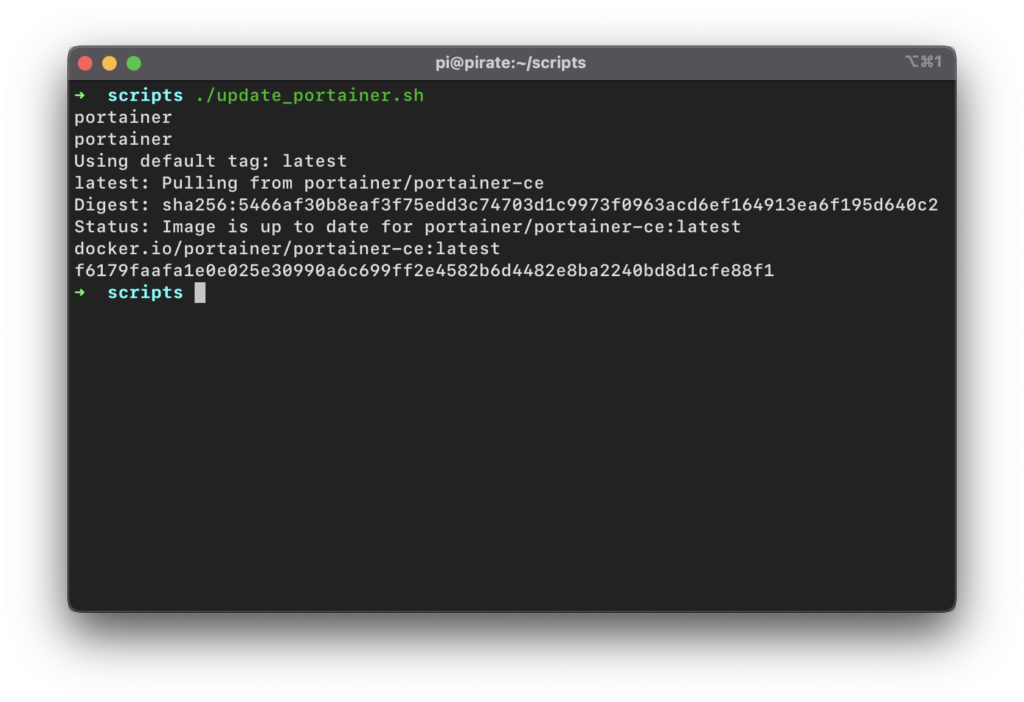
To simplify the update process, we will make two scripts.
The first script will install Portainer. This script makes use of the same command we ran earlier. The second script will update Portainer and inherits the install script.
#!/bin/sh

docker run -d -p 9000:9000 --name portainer \
--restart=always \
-v /var/run/docker.sock:/var/run/docker.sock \
-v portainer_data:/data \
portainer/portainer-ce:latest
Call the above script install_portainer.sh. To make the file executable run:
chmod +x install_portainer.shNow for the second script. To actually update a running container, we first need to stop and remove it.
The data, such as login credentials, will not be removed. Those are stored in the volume portainer_data, as you can see in the install_portainer.sh script.
When the container is removed we can pull the most up-to-date (latest) image, and install.
After the new container is running we will remove all dangling images. This will ultimately remove the old image form the system. See the script below.
#!/bin/sh

docker container stop portainer
docker container rm portainer

docker image pull portainer/portainer-ce:latest

./install_portainer.sh

docker image prune
Call this script update_portainer.sh. Like the last script, use the following command to give it execution rights.
chmod +x update_portainer.shTroubleshooting
When this is the first time using docker. It is possible that an error accuses along the lines of:
Got permission denied while trying to connect to the Docker daemon socket at unix:///var/run/docker.sock: Get http://%2Fvar%2Frun%2Fdocker.sock/v1.39/containers/json: dial unix /var/run/docker.sock: connect: permission deniedIn that case the user does not have the correct permissions. To resolve this problem, add the user to the docker group.
usermod -aG docker $USERTo make the changes go into effect, log out and back in again.
Docker compose
Alternatively, portainer can be installed using docker compose. Create a file called docker-compose.yml with the following content.
services:
  portainer:
    container_name: portainer
    image: portainer/portainer-ce:latest
    restart: always
    ports:
      - 9000:9000
    volumes:
      - /var/run/docker.sock:/var/run/docker.sock
      - portainer_data:/data

volumes:
  portainer_data:
Next, run docker compose up -d.