Prerequisites
This tutorial works for Linux and macOS systems.
For the next instructions to work the following packages must be installed:
zshcurlgitvim(or any other text-editor)
Oh My ZSH!
First, let’s install Oh-My-ZSH.
sh -c "$(curl -fsSL https://raw.githubusercontent.com/robbyrussell/oh-my-zsh/master/tools/install.sh)"Alternatively you could use the method provided at https://ohmyz.sh/#install.
Plugins
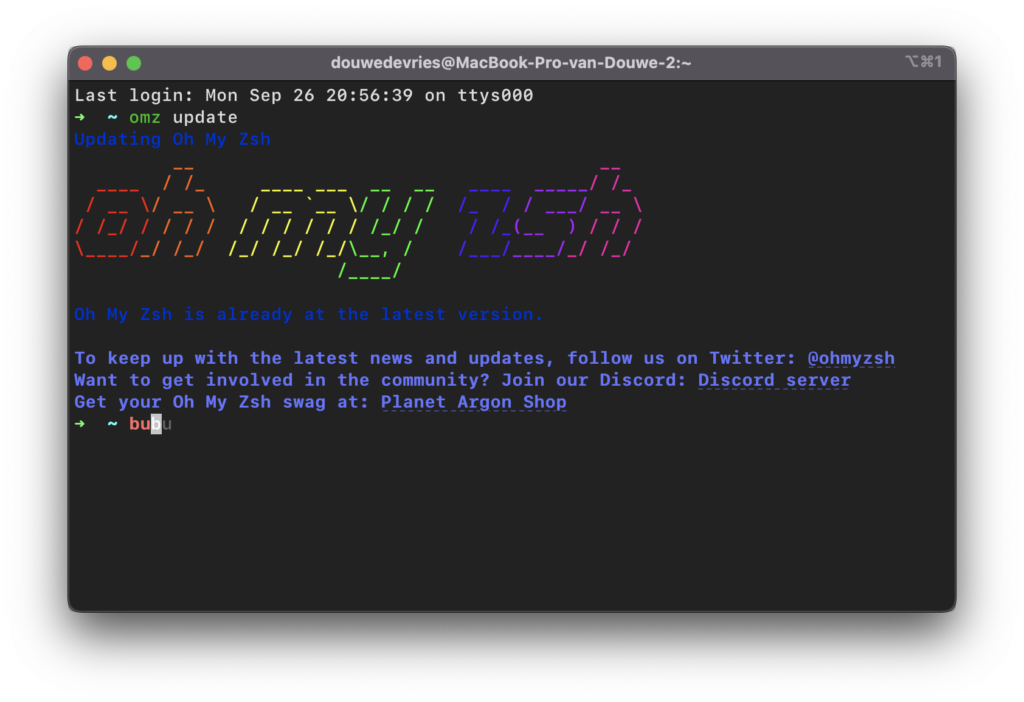
Oh-My-ZSH allows us to install plugins. Two useful plugins are autosuggestions and syntax-highlighting. Both are available at https://github.com/zsh-users.
Let’s clone the autosuggestions repository.
git clone https://github.com/zsh-users/zsh-autosuggestions.git $ZSH_CUSTOM/plugins/zsh-autosuggestionsNext, do the same for syntax-highlighting.
git clone https://github.com/zsh-users/zsh-syntax-highlighting.git $ZSH_CUSTOM/plugins/zsh-syntax-highlightingFurthermore, we can install a custom theme powerlevel10k.
git clone https://github.com/romkatv/powerlevel10k.git $ZSH_CUSTOM/themes/powerlevel10kNow that the two plugins and theme are downloaded, we need to add them to the file .zshrc. Using your favorite text-editor open ~/.zshrc.
vim ~/.zshrcWithin the file search for plugins=(git), and append the two new plugins as follows. Please note that the plugins are separated using spaces.
plugins=(git zsh-autosuggestions zsh-syntax-highlighting)When the above is added, save the file. For vim: hit ESC and then two times shift + Z.
We also need to specify the installed theme to make it go into effect.
ZSH_THEME="powerlevel10k/powerlevel10k"To make the changes in ~/.zshrc go into effect, reopen the terminal. Alternatively to reopening the terminal, source the file.
source ~/.zshrcUpdating
Once in a while, updates will be pushed to the repositories. Pull the changes to keep the local repositories up-to-date.
cd $ZSH_CUSTOM/plugins/zsh-autosuggestions; git pullcd $ZSH_CUSTOM/plugins/zsh-syntax-highlighting; git pullThis can also be done for the theme.
cd $ZSH_CUSTOM/themes/powerlevel10k; git pullAnd if you would like to go reconfigure your powerlevel10k theme, do so with the following command.
p10k configureTroubleshooting
During my experience with autosuggestion, I encountered a problem on macOS. When entering a value that can be completed using autocompletion, it would not properly complete. This issue was submitted here https://github.com/zsh-users/zsh-autosuggestions/issues/686.
To solve this bug, make sure to put the following lines in your ~/.zshrc file.
export LC_ALL=en_US.UTF-8
export LANG=en_US.UTF-8
Don’t forget to source the file after saving it, like instructed above.